
App Guide
The CodeLayers app for iPhone, iPad, and Apple Vision Pro lets you explore your codebase in 3D. Navigate dependencies, understand architecture, and chat with AI — on any device.
Installation
- Open the App Store on your iPhone, iPad, or Vision Pro
- Search for "CodeLayers"
- Download and install
Requires iOS 17+ or visionOS 2+.
First Launch
Try It Free: Explore Tab
The fastest way to experience CodeLayers—no account required:
- Launch CodeLayers
- Tap the Explore tab
- Paste any public GitHub PR URL (e.g.,
https://github.com/facebook/react/pull/31763) - See the blast radius visualization in 3D
This shows which files a PR affects and how changes ripple through the codebase. Great for code review on any open source project.
Sign In (For Pro Features)
To sync your own private repositories:
- Tap "Sign in with Apple"
- Authenticate with your Apple ID
Generate Your Mnemonic
Your 12-word mnemonic phrase is generated in the app and encrypts all your code. It syncs automatically across your Apple devices via iCloud Keychain.
- After sign-in, tap "Generate Recovery Phrase"
- CodeLayers creates a unique 12-word phrase
- Write it down immediately — store it somewhere safe!
- Confirm by re-entering the phrase
Important:
- This phrase is the ONLY way to decrypt your code
- We cannot recover it if you lose it
- You'll need to enter this same phrase in the CLI on your Mac
Alternative: Pair with Code
If you already have a mnemonic on your CLI, you can pair devices using a 6-digit code:
- On your Mac:
codelayers pair - A 6-digit code appears
- In the app: Tap "Pair with Code" and enter the code
- Devices sync their mnemonic securely
Home Screen
After setup, you'll see:
| Section | Description |
|---|---|
| Repos | Your synced repositories |
| Active Session | Currently connected CLI watch session |
| Connection Status | Shows if you're connected and syncing |
Tap a repo to open the visualization.
Visualization
CodeLayers displays your codebase as a volumetric 3D visualization—a floating, interactive graph that you can position anywhere in your space.
- Position: Drag to move it around your room
- Scale: Pinch to resize the entire visualization
- Rotate: Use two-finger rotation to spin the view
- Best for: Exploring architecture while multitasking with other apps
Understanding the Visualization
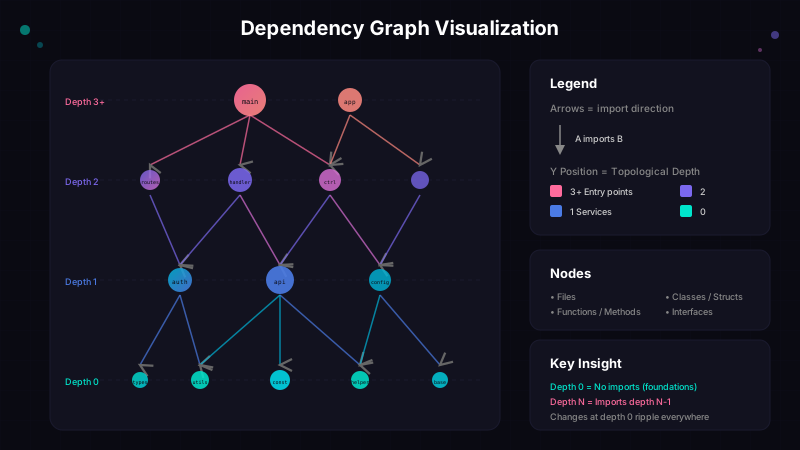
Dependency graph: arrows show import direction, colors indicate depth level
Layered Depth View
The default visualization organizes files by topological depth:
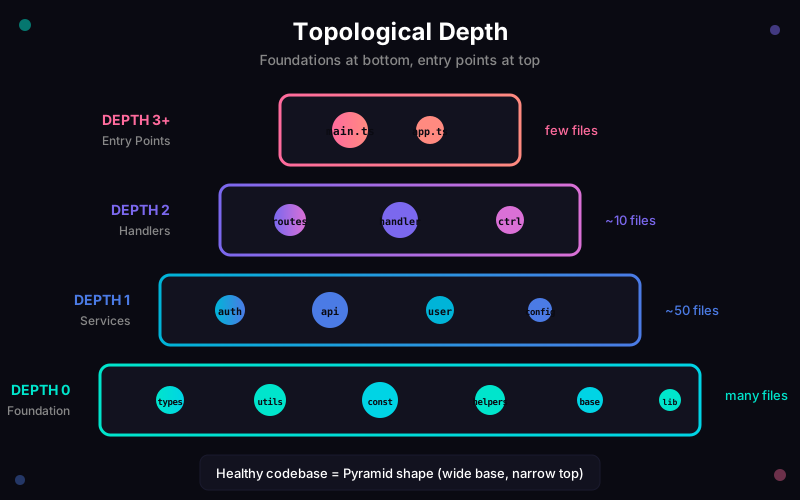
Files arranged by topological depth—foundations at bottom, entry points at top
Visual encoding:
- Position (Y-axis): Higher = closer to entry points
- Color: Varies by layer (cyan → blue → purple → pink)
- Size: Based on file complexity or importance (PageRank)
- Connections: Lines show dependencies (import/call relationships)
Blast Radius Mode
When viewing code changes, the visualization shows blast radius—the impact of modifications:
| Color | Distance | Meaning |
|---|---|---|
| ⚪ White | 0 | Source node (the changed file) |
| 🔴 Red | 1 | Direct dependents (1 hop) |
| 🟠 Orange | 2 | 2nd degree (2 hops) |
| 🟡 Yellow | 3 | 3rd degree (3 hops) |
| 🟢 Green | 4 | 4th degree (4 hops) |
| 🩵 Teal | 5+ | 5 or more hops away |
| ⚫ Gray | — | Not affected |
Logic: Hot colors = close to change (pay attention). Cool colors = further out (lower priority).
Node Types
| Shape | Meaning |
|---|---|
| Sphere | File |
| Larger sphere | File with high PageRank (many dependents) |
| Cluster | Directory or module |
Edge Types
| Line Style | Meaning |
|---|---|
| Solid | Direct import |
| Dashed | Function call |
| Thicker | Frequently used connection |
Navigation
Basic Gestures
| Gesture | Action |
|---|---|
| Tap | Select a node |
| Double-tap | Focus on node (zoom in) |
| Pinch out | Zoom in |
| Pinch in | Zoom out |
| Two-finger drag | Pan the view |
| Look + tap | Select where you're looking |
Selection
When you tap a node:
- It highlights in yellow/gold
- Connected nodes dim slightly
- A detail panel appears showing:
- File name and path
- Language and size
- Dependencies (imports this file)
- Dependents (files that import this)
- Quick actions
File Tree
In Window mode, the left sidebar shows a file tree:
- Expand/collapse directories
- Tap a file to select it in the 3D view
- Search bar at the top for quick filtering
- Sync indicator shows files being watched
Code Panel
When you select a file, a code panel can appear showing:
- File contents (syntax highlighted)
- Symbols (functions, classes, variables)
- Jump to symbol in the code
Note: Code is decrypted locally on your device using your mnemonic.
AI Chat
The AI chat panel lets you ask questions about your code while seeing it spatially.
Opening Chat
Tap the chat icon in the toolbar to open the AI chat panel.
Using Chat
- Type or dictate your question
- AI responds with explanations
- Relevant files are highlighted in the visualization
- Tap highlighted files to see details
Example prompts:
- "How does authentication work?"
- "What files would I need to change to add a new API endpoint?"
- "Explain the data flow from user input to database"
- "Show me the most important files in this project"
AI Agents
The chat uses whichever AI agent is running on your CLI:
| If CLI runs... | You chat with... |
|---|---|
| --agent claude | Claude |
| --agent gemini | Gemini |
| --agent codex | Codex |
If no agent is specified in CLI, chat is unavailable.
Settings
Access settings via the gear icon in the app.
Privacy
- View mnemonic: Show your 12-word phrase (requires re-authentication)
- Re-import mnemonic: Enter a different recovery phrase
- Sign out: Clear credentials and cached data
Tips & Tricks
Finding Important Files
The largest spheres have the highest PageRank—they're imported by many other files. These are often:
- Core utilities
- Shared types/models
- Main application logic
Understanding Dependencies
To see what a file depends on:
- Select the file
- Look at outgoing edges (lines going down/out)
- Or check the "Dependencies" list in the detail panel
To see what depends on this file:
- Select the file
- Look at incoming edges (lines coming in)
- Or check the "Dependents" list
Quick Navigation
- Double-tap any node to zoom directly to it
- Use the file tree search to jump to a file by name
- Ask the AI: "Show me the main entry point"
Multitasking (Vision Pro)
The volumetric visualization works great alongside other apps in your space:
- Your Mac's virtual display (with IDE and terminal)
- Safari (with documentation)
- Other spatial apps
Troubleshooting
"No Repos Found"
- Make sure CLI is running (
codelayers watch) - Verify you're logged in with the same mnemonic
- Check that sync completed successfully
"Connection Lost"
- Check internet connection on both devices
- Restart the CLI watch process
- The app will automatically reconnect when connection is restored
"Unable to Decrypt"
- Your mnemonic doesn't match the one used to encrypt
- Re-import your mnemonic: Settings → Privacy → Re-import Mnemonic
- Make sure you're entering all 12 words correctly
Poor Performance
- Close other apps to free up resources
- Reduce node count by focusing on a subdirectory
- For very large codebases (5000+ files), consider syncing individual packages