You ask an AI agent to show you the authentication code. Rings light up around your auth files in 3D. You can see exactly where authentication lives in your codebase.
Then you ask about something else. The highlights vanish. That spatial context you just built? Gone.
Overlays fix this.
Save any highlight set as a persistent layer. Toggle it on whenever you need it. Build up a visual vocabulary of your codebase over time.
How It Works
When you chat with an AI agent—Claude, Gemini, or Codex—it automatically highlights relevant files in your 3D visualization. Before overlays, those highlights were ephemeral. The moment you moved on, they disappeared.
Now, when an AI highlights files, an AI Highlights card appears in the Overlay panel. Tap the layers icon on the left side of your view.
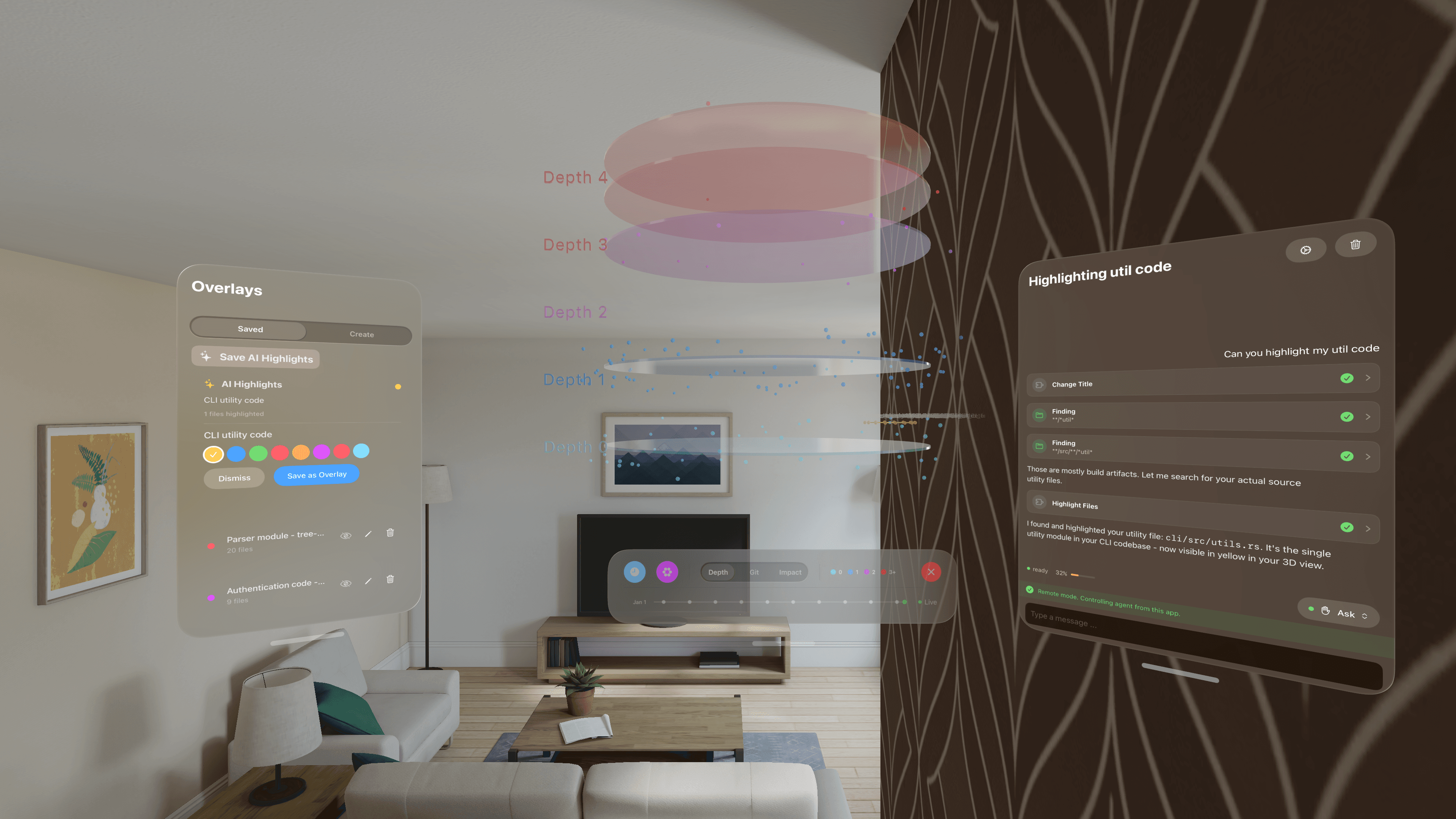
The card shows a title describing what the AI found, how many files are highlighted, and the highlight color. Tap Save as Overlay, name it something like "Auth System", and you're done.
That highlight set is now a permanent layer.
Works with Every Agent
| Agent | Command |
|---|---|
| Claude Code | codelayers watch . --agent claude |
| Gemini CLI | codelayers watch . --agent gemini |
| Codex | codelayers watch . --agent codex |
Ask any of them to highlight relevant code. Save the result as an overlay.
Creating Overlays Manually
Don't want to use AI? Switch to the Create tab and build overlays yourself:
- Tap files in the graph — select them directly in 3D space
- Search by name — type to find specific files
- Pick a color — each overlay starts with a random color, or choose your own
- Save — your selection becomes a toggleable layer
Preview rings appear immediately as you select, so you see exactly what you're saving before you commit.
Overlays + Blast Radius
This is where it gets interesting.
You're about to refactor a core file. Switch to Impact mode and watch as the visualization shows every file that would be affected—direct dependents, their dependents, rippling outward through your codebase.
Now save that blast radius as an overlay called "Refactor Impact Zone."
Next time you touch that file? Toggle it on. Instant visual reminder of what you might break.
"If you can see the impact, you can plan the change."
Use Cases
Architecture Layers
Create overlays for "API Handlers", "Database Layer", "Services". Toggle them to see how your architecture is organized in 3D space.
Feature Boundaries
Save "Payment Flow" or "User Onboarding" as overlays. When you're deep in a feature, toggle it on to stay focused on the relevant files.
Code Review Prep
Before reviewing a PR, ask an AI agent about the changed files. Save that highlight as "PR #123 Review". Toggle it on during the review to keep spatial context.
Team Onboarding
Mark the important landmarks in your codebase. New team members toggle them on as they explore—a guided tour of your architecture in 3D.
Multiple Overlays at Once

You can have several overlays active simultaneously. Each gets its own colored ring, so overlapping areas—files that belong to multiple layers—are immediately visible.
Toggle them on and off from the Saved tab. Your overlays sync across devices.
Try It
- Open CodeLayers on your iPhone, iPad, or Vision Pro
- Start a session:
codelayers watch . --agent claude - Ask the agent to show you something in your codebase
- Open the Overlay panel when highlights appear
- Tap Save as Overlay
Your code insights are now permanent.
Overlays are available now in CodeLayers for iPhone, iPad, and Vision Pro. Download from the App Store or update to the latest version.